Quick answer
If your tracker card has been in a drawer for months, don’t judge it by the first try. Recharge it fully on a wireless pad, open Find My (iPhone) or Find Hub (Android) to check that it still appears and shows no low-battery notice, re-pair it only if it’s missing, then run three quick tests: ring it, trigger a left-behind alert and watch its location update. Once those pass, set a repeating charging reminder so it never goes quiet again.
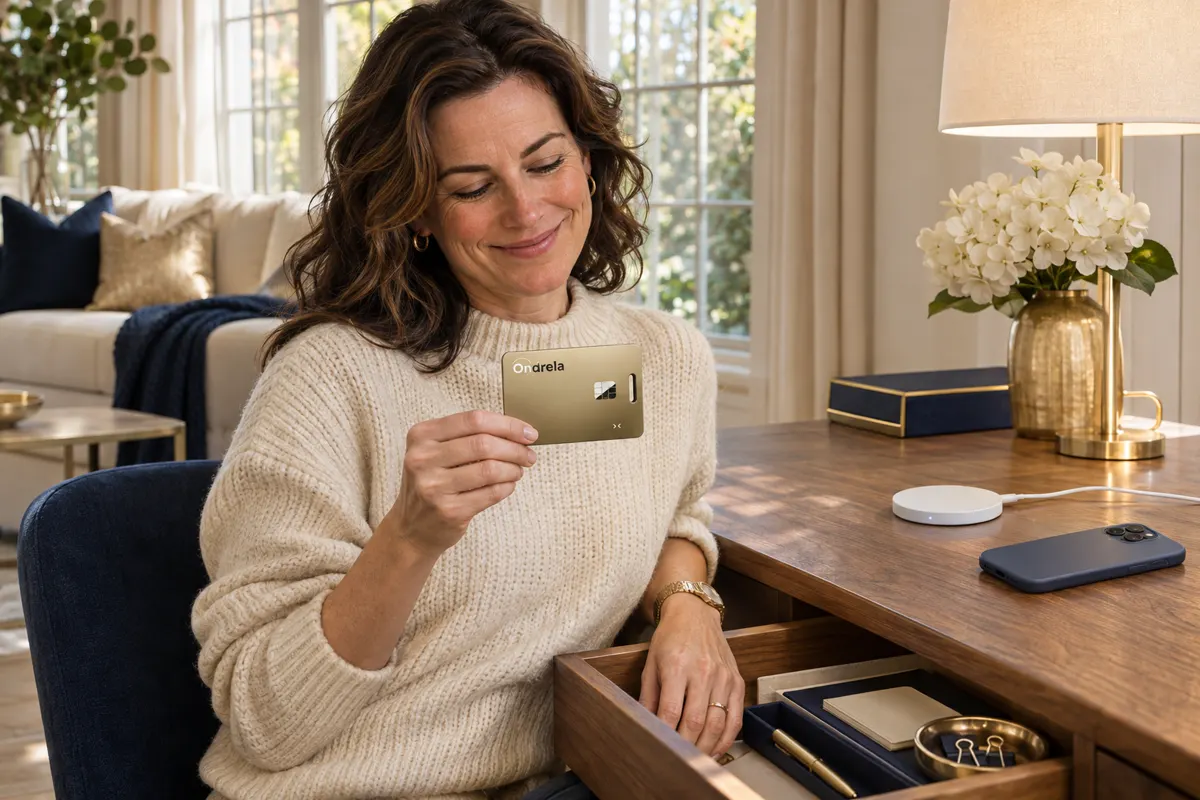
It happens all the time. You set up a tracker card, used it for a while, then a move, a busy season, a new phone or a new wallet came along and the card ended up in a drawer. Months later you find it — maybe right before a holiday trip — and wonder whether it still works, whether the battery is dead and whether you have to start from scratch.
Good news: a rechargeable card tracker is made for exactly this kind of comeback. There’s no coin cell to replace and nothing to buy. You just need a calm, step-by-step restart. Below is the checklist we’d follow, in order, plus a table of what each symptom usually means. If you’re brand new to the finder apps, our explainer on how the Ondrela card works with Find My and Find Hub is a good primer.
Why a tracker “goes quiet” after a long break
When a tracker stops showing up or stops updating after months unused, the cause is almost always one of these, not a broken device:
- The battery ran down. Even unused, a tracker keeps a low-power Bluetooth signal on so it can be found. The Ondrela card, for example, is rated by its maker at around six months per charge — so a card that sat for half a year or more is probably empty.
- Your phone changed. A new phone, a factory reset or a switch between iPhone and Android can leave the card linked to the old setup.
- Permissions changed. System updates sometimes reset Bluetooth, location or notification permissions for the finder app.
- The item was removed. Someone tidied up the Items list, or the card was set up on a family member’s account.
The restart checklist, step by step
- Inspect it. Wipe the card with a dry, soft cloth and check that it isn’t bent or cracked. Cards that lived in a drawer are almost always fine.
- Charge it fully. Place the card flat and centered on any standard wireless charging pad — the same kind you use for your phone — and leave it there for a good while rather than a quick minute. If the pad has an indicator light, make sure it shows the card is charging.
- Update your phone. Install pending system updates, then make sure Bluetooth is on and the finder app has precise location and notifications allowed.
- Find it in the app. On iPhone, open Find My and look under Items; on Android, open Find Hub. Tap the card and look for a low-battery notice. Finder apps usually flag a low battery rather than showing an exact percentage, which is why step 2 comes first.
- Re-pair only if it’s missing. If the card isn’t listed, remove it from any old account it may still belong to, then add it again following the quick guide that came in the box.
- Check the name and alerts. Rename it if it moved to a new item (“Travel bag” instead of “Wallet”), turn on left-behind notifications and review your trusted places.
Test it before you depend on it
A tracker you just brought back is only useful if you know it works. Give it three simple tests on the same day you restart it:
- The sound test: leave the card in another room and play the sound from the app.
- The walk-away test: leave the wallet or bag at home and walk around the block. The left-behind alert should arrive on your phone.
- The map test: leave the card somewhere you know (your car, a friend’s place) and check that the location updates in the app.
Do this a few days before a trip, not at the airport. If you’re traveling soon, our guide to what to do if an airline loses your luggage pairs well with a freshly tested card in your suitcase.
What each symptom usually means
| What you see | Most likely cause | What to do |
|---|---|---|
| Card not listed in the app | New phone, reset or other account | Remove it from the old account, then add it again |
| Listed, but location is months old | Battery ran down while stored | Charge fully, keep it near the phone for a few minutes |
| Low-battery notice in the app | Not charged long enough | Back on the wireless pad, centered, for longer |
| Sound doesn’t play | Out of Bluetooth range or Bluetooth off | Move closer, check Bluetooth and try again |
| No left-behind alert | Notifications or the alert setting were reset | Re-enable notifications and the left-behind option |
| Doesn’t charge on the pad | Card off-center or a thick case/object in the way | Place it flat and centered on the bare pad |
Keep it from going quiet again
The restart takes ten minutes; staying ready takes even less. Add a repeating calendar reminder every five months — a little before the stated six-month battery life — that says “charge tracker card.” Many people tie it to a date they already remember, like the start of a season or a daylight saving time change. While it charges, glance at the app to confirm the name and alerts are still right. If the card moves to a different bag or wallet, rename it right away so you know what you’re looking for on the map. And if it’s been a while since you thought about why things go missing in the first place, why we keep losing things is a quick, useful read.
Our recommendation: the Ondrela card tracker
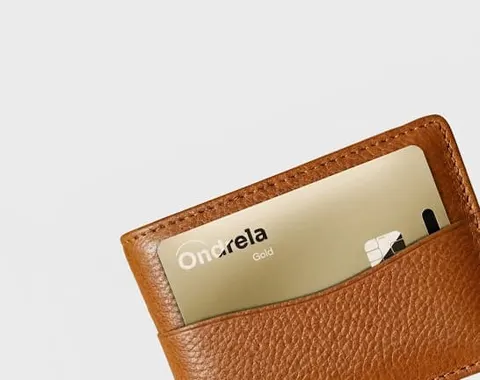
If you’re restarting an old tracker — or replacing one that ran on disposable coin cells — the Ondrela card tracker is the one we recommend. It’s built to come back from a long break without fuss:
- Rechargeable on any wireless pad, with a stated battery life of around six months per charge — no coin cells to buy.
- Works in Find My on iPhone and Find Hub on Android, with no extra app and no subscription.
- Ring on demand and left-behind alerts, the two features you test first after a break.
- Credit-card thin and water resistant, so it fits a wallet slot, passport holder or bag pocket.
The 4-card bundle at $99.96 ($24.99 per card) is the most popular choice. You can also get 1 card for $44.99, 2 for $69.98 or 3 for $89.97, with $4.95 standard shipping and a 60-day return policy. See every detail in our full review or compare bundles on the home page.
Frequently asked questions
How do I check my tracker’s battery?
Open the finder app (Find My on iPhone or Find Hub on Android), go to your items and tap the tracker. Finder apps usually show a low-battery notice rather than an exact percentage, so after months unused the safest move is simply to recharge the card before you rely on it.
Will a tracker card still work after months in a drawer?
Usually yes, once it is charged again. A rechargeable card does not need a new battery; place it on a wireless pad, confirm it still appears in your finder app and run a quick sound and left-behind test.
Do I need to pair the tracker again?
Only if it no longer appears in your finder app, for example after you changed phones or accounts. Remove it from the old account if needed, then add it again following the quick guide in the box.
How often should I charge the Ondrela card?
The maker lists around six months of battery per charge. A simple habit is a calendar reminder every five months to top it up on any standard wireless charger.
What should I test before a trip?
Play the sound from the app, walk away to trigger the left-behind alert, and check that the card’s location updates on the map. If all three work, it is ready to travel.