Quick answer
No, the Ondrela card does not need its own app. It works inside the finder app that is already on your phone: Find My on iPhone, and Google’s Find Hub (formerly Find My Device) on Android. There is no account to create, nothing extra to download and no subscription — you add the card like any other item, then ring it, see its last location and get left-behind alerts from the app you already use.
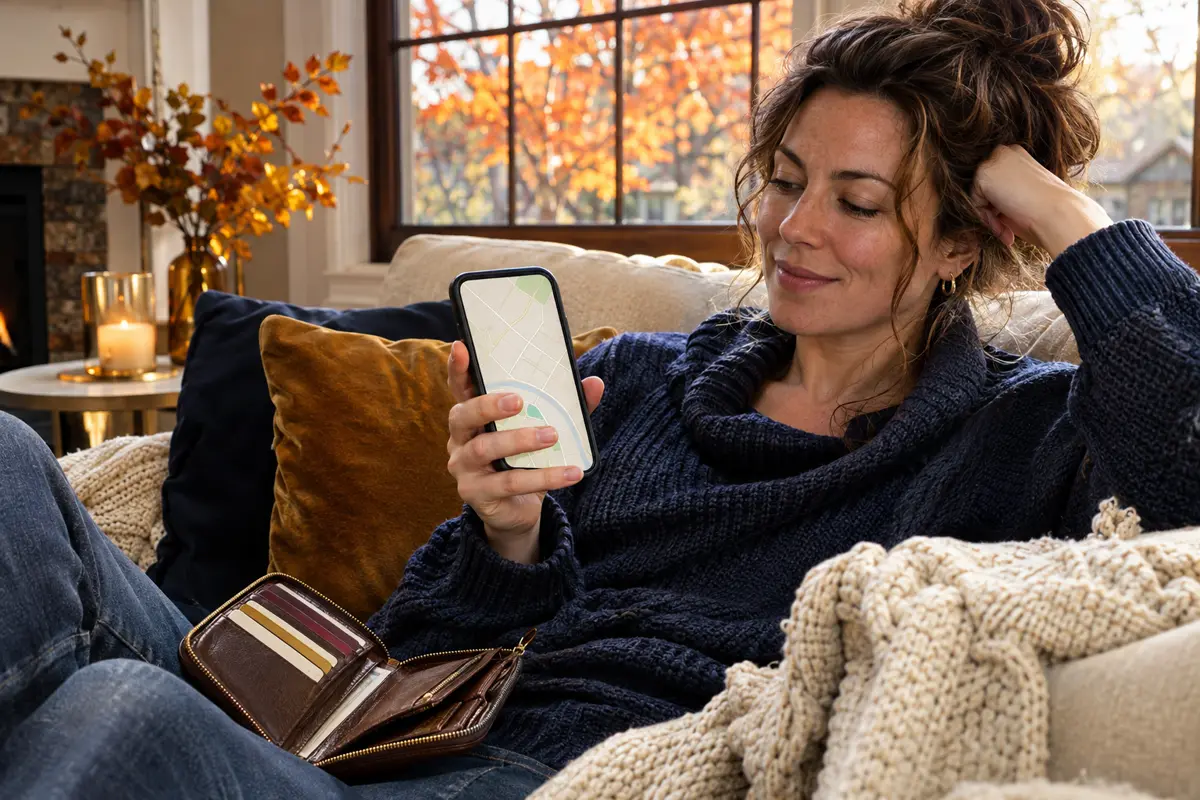
“Ondrela app” is one of the searches that bring people to our site, and it’s a fair question. Most gadgets today come with their own app, their own login and often a monthly plan hiding somewhere in the settings. If you’re thinking about putting a card tracker in your wallet, you want to know up front what you’ll have to install and manage.
The short version is good news: nothing new. Below we explain how the card connects to your phone, what you can do in Find My and Find Hub, how setup works step by step, and what to check if the card doesn’t show up. If you’re on Android and still comparing options, our guide to choosing an item tracker that works with Android covers the bigger picture.
Why there is no separate Ondrela app
The Ondrela card is built to use the finder networks Apple and Google already run. Your iPhone has Find My built in; most Android phones have Find Hub through Google. These apps already locate your phone, tablet or earbuds, and they also support compatible item trackers. Instead of reinventing that with a separate app and account, the card plugs into the system your phone already trusts.
That design has three practical benefits:
- Nothing to keep updated: the finder app updates with your phone’s system.
- A huge network: when the card is away from you, its location updates whenever a compatible phone passes nearby — anonymously and encrypted.
- No subscription: you buy the card once; the app and network cost nothing extra.
What you can do in the app
| Feature | iPhone (Find My) | Android (Find Hub) |
|---|---|---|
| Add the card as an item | Yes | Yes |
| Play a sound to find it nearby | Yes | Yes |
| See last known location on a map | Yes | Yes |
| Left-behind alert | Yes (“Notify When Left Behind”) | Yes, where supported by your phone |
| Name the item (“Wallet”, “Car keys”) | Yes | Yes |
| Extra app or account | Not needed | Not needed |
Menus look a little different on each phone and system version, but the core features are the same: ring it, see where it was last seen, and get a nudge when you walk away from it.
Setting up the card in five steps
- Charge the card on any standard wireless charger, like the one you use for your phone.
- Turn on Bluetooth and location on your phone and make sure the system is up to date.
- Open the finder app: Find My on iPhone (Items tab) or Find Hub on Android, and choose to add an item or device.
- Hold the card next to your phone and follow the on-screen steps from the quick guide in the box.
- Name it and turn on alerts: call it “Wallet”, enable left-behind notifications and add home as a trusted place.
The whole thing usually takes a few minutes. Afterwards, test it once: play the sound with the wallet in another room, then walk around the block without it to see the alert arrive.
If the card doesn’t show up in the app
- Check the tab: on iPhone, item trackers live under Items, not Devices.
- Check permissions: the finder app needs Bluetooth, precise location and notifications.
- Check battery: put the card back on the wireless charger for a while. If it sat unused for months, follow our restart checklist for a tracker that has been in a drawer.
- Restart and retry: restart the phone, keep the card close, and add it again.
- Was it added before? A card linked to another account must be removed there first.
Who can see where your card is?
Only you — and anyone you choose to share the item with, where your phone supports sharing. When a stranger’s phone helps update your card’s location, that happens in the background, encrypted and anonymous: they don’t see your card, and you don’t see who they are. Both Apple and Google also build in alerts that warn people if an unknown tracker seems to be moving with them, a safeguard against misuse. Using the built-in finder app means you get these protections automatically, without trusting a separate company’s app and servers with your location history.
That’s another quiet advantage of the no-extra-app design: fewer accounts holding your data, and the same privacy settings you already use for your phone.
Heard a tracker chirping and not sure why? Our guide to why an AirTag keeps beeping walks through each stage of these alerts and what to do.
Switching phones later
Because the card lives in your phone’s finder app, changing phones is simple. Moving from one iPhone to another, or one Android to another, your items follow your Apple or Google account. Switching between iPhone and Android? Remove the card from the old app and add it to the new one — no new purchase, no new subscription. That flexibility is also why mixed iPhone/Android households like card trackers; we covered sharing in how couples and families can share card trackers.
Our recommendation: the Ondrela card tracker
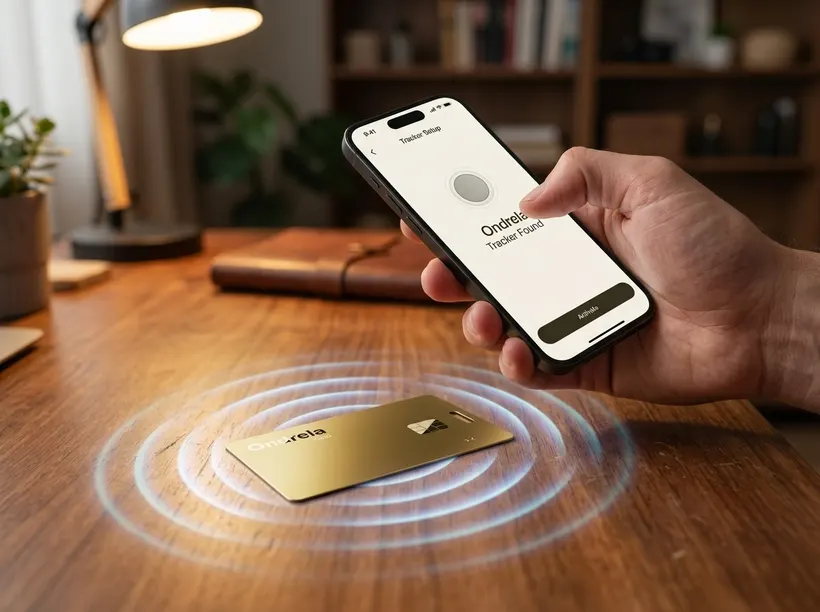
If you want a wallet tracker without yet another app, login or monthly fee, the Ondrela card tracker is the solution we recommend. It was designed exactly for that:
- Works in Find My on iPhone and Find Hub on Android — no extra app, no subscription.
- Ring on demand and left-behind alerts for the wallet you leave at the café.
- Last known location on the map through the finder network built into your phone.
- Credit-card thin, water resistant, wireless charging, around six months of battery per charge.
The 4-card bundle at $99.96 ($24.99 per card) is the most popular choice. You can also get 1 card for $44.99, 2 for $69.98 or 3 for $89.97, with $4.95 standard shipping and a 60-day return policy. See every detail in our full review or compare bundles on the home page.
Frequently asked questions
Does the Ondrela card need its own app?
No. It works inside the finder app already on your phone: Find My on iPhone and Google’s Find Hub on Android. There is no separate Ondrela app or account.
Is there a monthly fee for the Ondrela app?
No. There is no Ondrela app to pay for, and Find My and Find Hub are free. You only pay once for the card.
Where does the Ondrela card show up on my iPhone?
In the Find My app, under the Items tab, with the name you gave it during setup.
Does the Ondrela card work with Android?
Yes. On Android it works with Google’s Find Hub (formerly Find My Device), the finder built into most Android phones.
Can I move the card to a new phone?
Yes. Items follow your Apple or Google account. If you switch between iPhone and Android, remove the card from the old app and add it in the new one.